
How to install Arcadeados
Step by step, from the download to your first game. Choose where you'll use it.
Windows
A classic installer: you choose the folder and Arcadeados keeps everything inside it. It doesn't write anywhere else on the disk and includes no commercial games.
-
Download the installer
Press Download on the home page. You can make a voluntary contribution or choose “No thanks, just download”: the download is free and contributing unlocks nothing.
- It's saved as
Arcadeados-Instalador-1.0.76-en.exeand weighs about 730 MB. - The end of the name (
-en) is the website's language: the installer shows up in that language and Arcadeados starts in it. If you rename the file without it, the Windows language is used.
If your browser says the file isn't commonly downloaded, choose Keep: it's a new program and still has few downloads.
- It's saved as
-
Open it and get past the Windows warning
Double-click the installer. As it isn't digitally signed yet, Windows may show the blue SmartScreen screen, “Windows protected your PC”.
- Press More info and then Run anyway.
- Windows then asks whether you allow it to make changes to your device: say Yes. It's needed because it installs for every user on the PC.
-
Follow the wizard and choose the folder
- Accept the licence notice: Arcadeados is free software (GPL-3.0), free of charge and without warranty.
- Choose the folder. By default it's
C:\Program Files\Arcadeados, but you can put it on another drive with more room, such asD:\Arcadeados. - Once installed it takes about 2.5 GB, plus whatever it saves as you use it (images, saves, photos).
-
What ends up in that folder
Besides the program, its emulators (
Motores\), the catalogue (Catalogo\) and the licences (Legal\), the installer creates three folders next toArcadeados.exethat are yours:Datos\: settings, saved images, saves, photos and your BIOS files, with one folder per console inDatos\BIOS\.ROMs\: an empty subfolder per system, with Batocera's names (snes,megadrive,psx,gba…), in case you want to keep your games there.Registros\: logs of each game session, useful if something goes wrong.
Your user can write to those three folders, so Arcadeados works without asking for administrator rights even in Program Files. It also creates shortcuts on the desktop and in the Start menu.
-
First launch
- When it finishes, the wizard can open Arcadeados. It starts in the language of the download; change it in Settings → Language.
- It needs the internet the first time it shows each game, to fetch its images and texts. After that it works offline, and in Settings → Offline you can download everything in advance.
- Settings → Tutorial has a guide to every screen, with screenshots.
-
Add your ROMs
Arcadeados includes no commercial games: it reads yours. There are two ways:
- Copy them into their system's subfolder inside
ROMs\, for exampleROMs\snes. - Or leave them where they already are and choose that folder in Settings → ROM folders → Choose folder. Best is one subfolder per console, such as
D:\roms\snes: each one's name tells the system. They're neither copied nor moved.
They're scanned at startup and watched while the program is open: whatever you copy shows up by itself. Each game is recognised by its fingerprint, even if the file has another name. If you have none, the Free zone has arcade games and homebrew their authors allow to be shared.
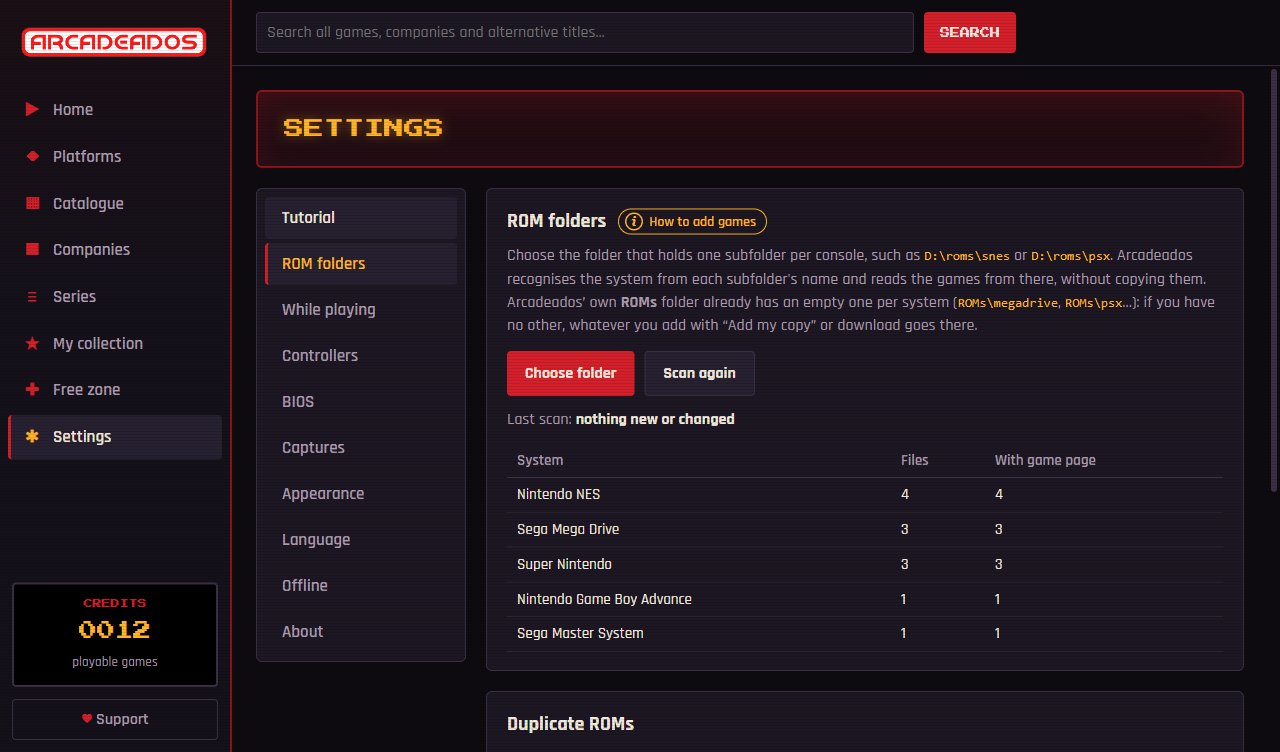
Settings → ROM folders, with how many games there are for each system - Copy them into their system's subfolder inside
-
And your BIOS, if a console needs them
Some consoles (PlayStation, PlayStation 2, Mega-CD, Saturn…) need the original firmware. Arcadeados doesn't include it, but finds yours:
- If it's in your ROM folders, even inside a .zip or .7z and under another name, it's detected when scanning and made ready.
- You can also drop it into its console's folder inside
Datos\BIOS\or drag it onto its line in Settings → BIOS, which checks it's the right one. - Gather all my BIOS files finds the ones scattered around and moves them into place; duplicates go to the Recycle Bin.
For Switch, Arcadeados uses the Eden emulator, which needs the keys and firmware from your own console.
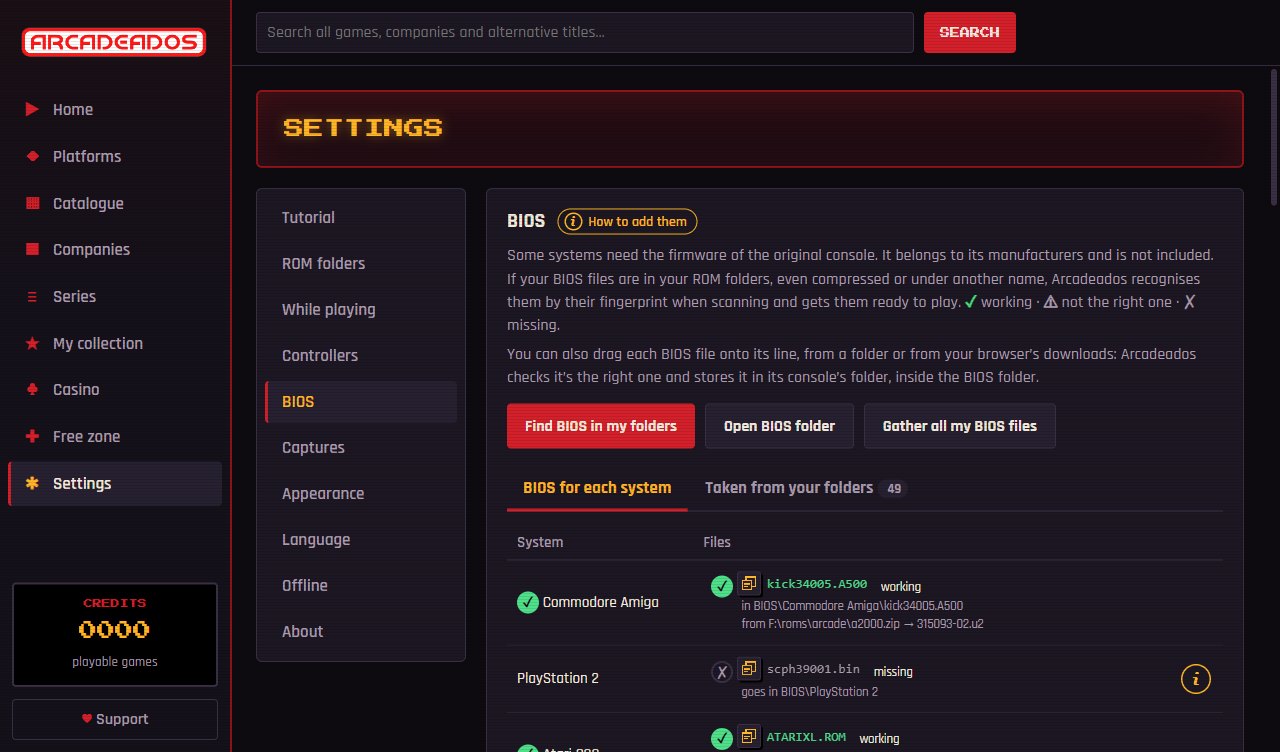
Settings → BIOS: ✓ working, ⚠ not the right one, ✗ missing -
Update to a new version
- When a new version comes out, Home tells you with a button to download it. You can also get it from this website.
- Close Arcadeados, open the new installer and keep the same folder: it installs on top without asking about your data and without touching
Datos\,ROMs\orRegistros\. - If Arcadeados is still open, the installer stops and says so: close it and try again.
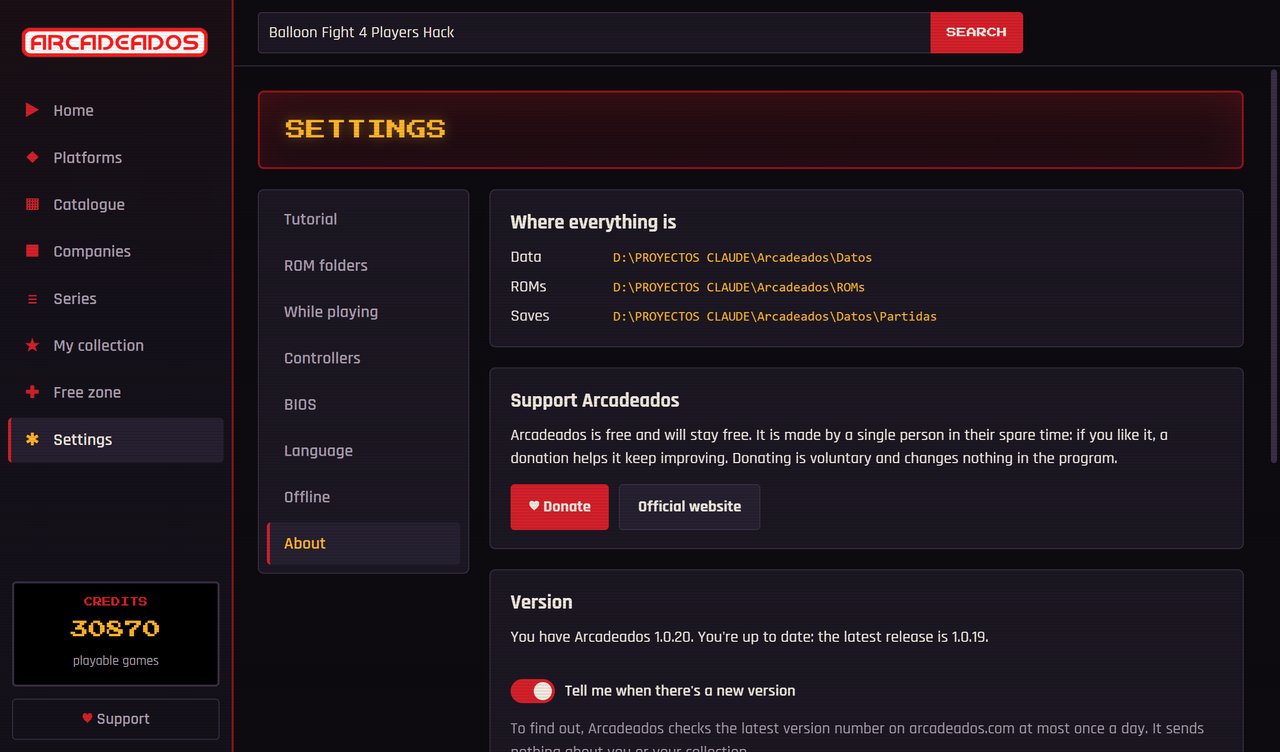
Settings → About: your version and the option not to look for new ones -
Uninstall
- Go to Windows Settings → Apps → Installed apps, find Arcadeados and press Uninstall.
- It asks whether you want to keep your ROMs, saved games and settings. Yes removes only the program and leaves
Datos\,ROMs\andRegistros\in its folder. No also deletes everything in the install folder. - ROM folders you chose in Settings, outside the installation, are never touched.
Portable on USB
Arcadeados and your games on a USB stick or an external drive, to play on any Windows PC without installing anything.
-
Download the portable version
Press Download on this card or, on the home page, “Portable version” below the download button.
- It is saved as
Arcadeados-Portatil-1.0.76.zipand weighs about 1.1 GB; unzipped it takes about 2.7 GB. - It is the same Arcadeados as the installer, without the wizard: it does not touch the Windows registry or ask for administrator permission.
If the browser says the file is not commonly downloaded, choose Keep.
- It is saved as
-
Get the stick or drive ready
- Format it as NTFS or exFAT. FAT32 does not allow files over 4 GB, like many PS2, GameCube or Wii games.
- USB 3 or an external drive is better: on a slow stick big games take longer to load.
- Leave room for your games and for what Arcadeados saves as you use it.
-
Unzip it on the stick
- Right-click the .zip → Extract All and choose the stick. You get a folder like
E:\Arcadeados. - Open
Arcadeados.exein that folder. If the blue SmartScreen warning appears, press More info and Run anyway.
- Right-click the .zip → Extract All and choose the stick. You get a folder like
-
Everything stays inside its folder
Datos\,ROMs\andRegistros\are created next toArcadeados.exe: settings, saves, photos, BIOS and saved images go there, never to the PC.- Put your games in
ROMs\, in their system’s subfolder, or in another folder on the same stick and add it in Settings → ROM folders. - Settings → About reminds you that you are using the portable version and from where.
- Put your games in
-
On another PC
Plug in the stick and open
Arcadeados.exe. Even if Windows gives it another letter (E:, F:…), Arcadeados moves on its own what is in its folder and the ROM folders on the same stick.- Folders that were on the other PC’s drives show as missing until you go back to it.
- On the first game on each PC, Windows may ask whether RetroArch can use the network: it does not need it, press Cancel.
-
Updating
- Download the new portable version and unzip it on top, in the same folder, and accept replacing the files.
Datos\,ROMs\andRegistros\are not in the .zip: your games, saves and settings are kept.
Linux
Arcadeados for 64-bit Linux (x86_64): an AppImage that runs on almost any distribution without installing anything, and a .deb package for Debian, Ubuntu, Linux Mint and derivatives.
-
Download the AppImage
Click Download on this card. It's saved as
Arcadeados-1.0.76-x86_64.AppImageand weighs a little over 1 GB.- It's the same Arcadeados as on Windows, with RetroArch and its Linux cores inside.
- Prefer a package? On Debian, Ubuntu or Mint download the .deb from
arcadeados.com/descargar?tipo=deband skip to the last step.
-
Put it in its own folder
Create a folder for Arcadeados, for example
~/Arcadeados, and move the AppImage into it:Datos/,ROMs/andRegistros/will be created next to it.- If that folder can't be written to, Arcadeados keeps its things in
~/.local/share/Arcadeados. - A USB stick or external drive formatted as ext4 or exFAT works too.
- If that folder can't be written to, Arcadeados keeps its things in
-
Allow it to run
- Right-click the AppImage → Properties → Permissions → Allow executing file as program.
- Or in a terminal:
chmod +x Arcadeados-1.0.76-x86_64.AppImage.
On Ubuntu 22.04 and later, AppImages need FUSE 2:
sudo apt install libfuse2(on Ubuntu 24.04,libfuse2t64). -
Open it and add your games
Double-click the AppImage. Put your games in
ROMs/, in their system's subfolder, or add your folder in Settings → ROM folders. BIOS files go inDatos/BIOS/.- Settings → About tells you where your data is.
- To have Arcadeados open in OS mode when you log in: Settings → Arcade cabinet → Cabinet mode.
-
Controllers
- USB controllers work as soon as you plug them in. Bluetooth ones are paired first in your desktop's settings.
- With a keyboard-encoder arcade panel (I-PAC), to open the menu with Start 1 + coin 1 during a game your user must be in the “input” group:
sudo usermod -aG input $USERand log in again.
-
What isn't on Linux yet
- Switch: Eden, its emulator, only comes with the Windows version.
- Light guns: just one, working as the mouse; choosing each gun's mouse is Windows-only.
- CRT TV (CRT SwitchRes) and recording gameplay video: turned off. Photos do work.
- On Wayland the game can't be moved to another screen mid-game: choose the screen in Settings → When playing.
-
Updating
- Arcadeados tells you on Home when there's a new version. Download the new AppImage, put it in the same folder, allow it to run and delete the old one: your games, saves and settings are kept.
- With the .deb:
sudo apt install ./Arcadeados-1.0.76-amd64.deb. It opens from the applications menu and keeps your data in~/.local/share/Arcadeados.
Mac Coming soon
Arcadeados for Mac.
Not available yet. When it's out, its steps will be here; we'll announce it in What's new.
Did something not go as described here?
Write to us from Contact and tell us which step you got stuck on. If it fails when playing, paste into the message what Registros\RetroArch\ultima-partida.log says.